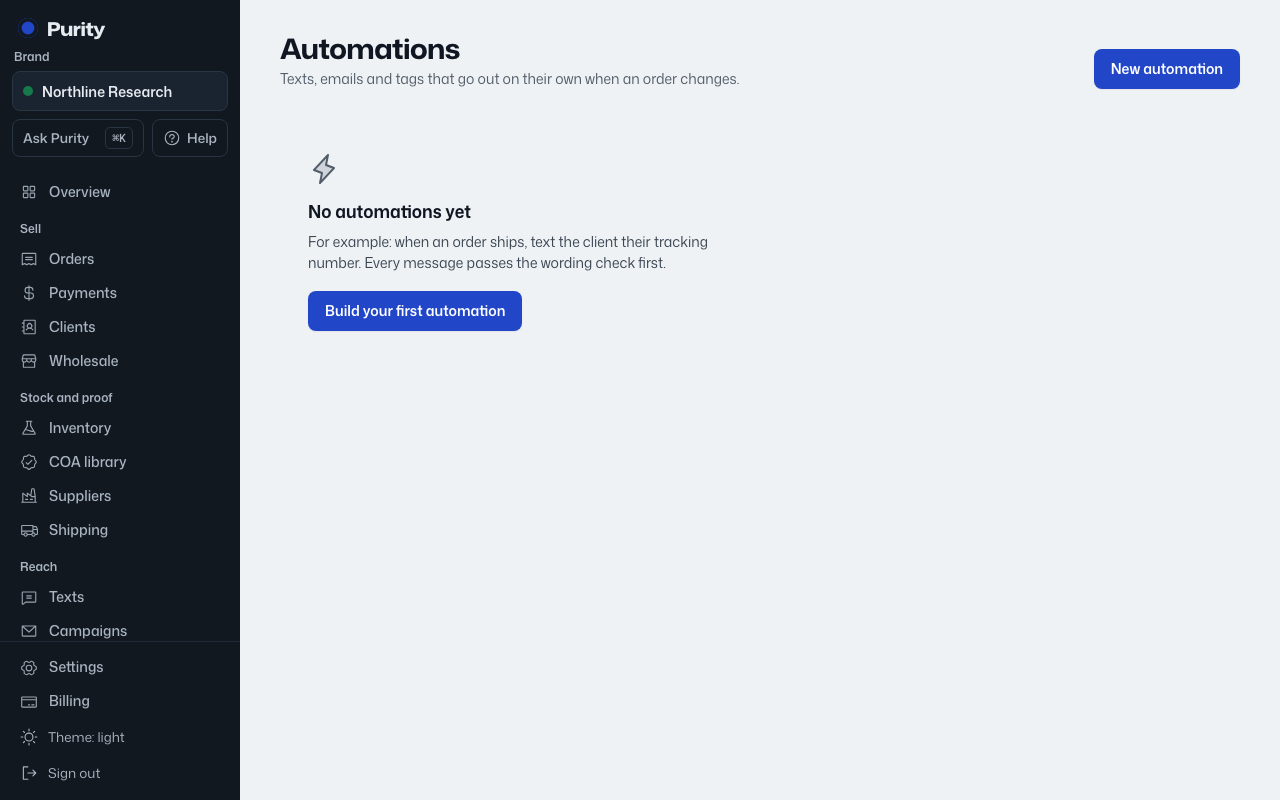
An automation watches for one order event and, when it happens, does one thing.
- Open Automations and click "New automation".
- Name it.
- Choose "When": Order confirmed, Order shipped, Order delivered, or Order cancelled.
- Choose "Then": Send a text to the client, Send email to client, or Add tag to client.
- For a text, write the "Message". For an email, write a "Subject" and "Message". For a tag, enter the "Tag".
- Click "Create automation".
A text or email message is checked for wording before it saves. Blocked words stop it from saving; flagged words show a reason box, and only an owner or admin can send it anyway.
New automations are created active and fire the next time their trigger happens.