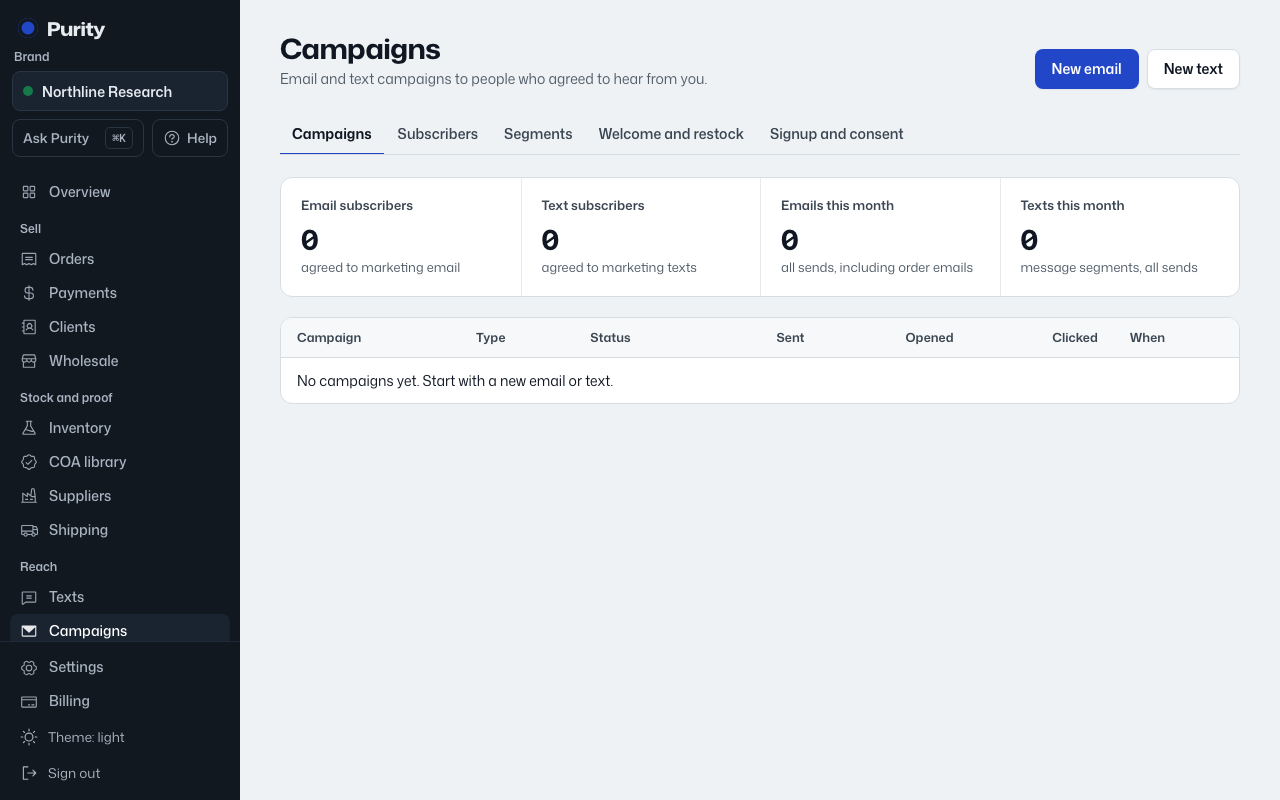
Open Signup and consent.
Turn on "Ask new email signups to confirm by clicking a link first (double opt-in)" if you want new email signups to confirm before they count as subscribed.
Edit the Email consent wording and Text consent wording shown next to the signup boxes. The text wording must say how to stop; Purity checks for the word stop before saving. Each signup stores the exact wording the person saw, so changing it later does not rewrite anyone's existing record.
Paste the signup form snippet into your website where you want it to appear, using a publishable key from API keys and your site added under Website. A second snippet adds a tell-me-when-it-is-back button for one product.
The do-not-message list at the bottom shows everyone who cannot be messaged: unsubscribed, replied STOP, bounced, marked as spam, or removed by your team, with the date.
Texts to your number that say STOP, END, CANCEL or UNSUBSCRIBE opt that number out of every text, including order updates, with one confirmation reply. HELP replies with your support email. Texts only go out between 8am and 9pm in each person's own time zone.