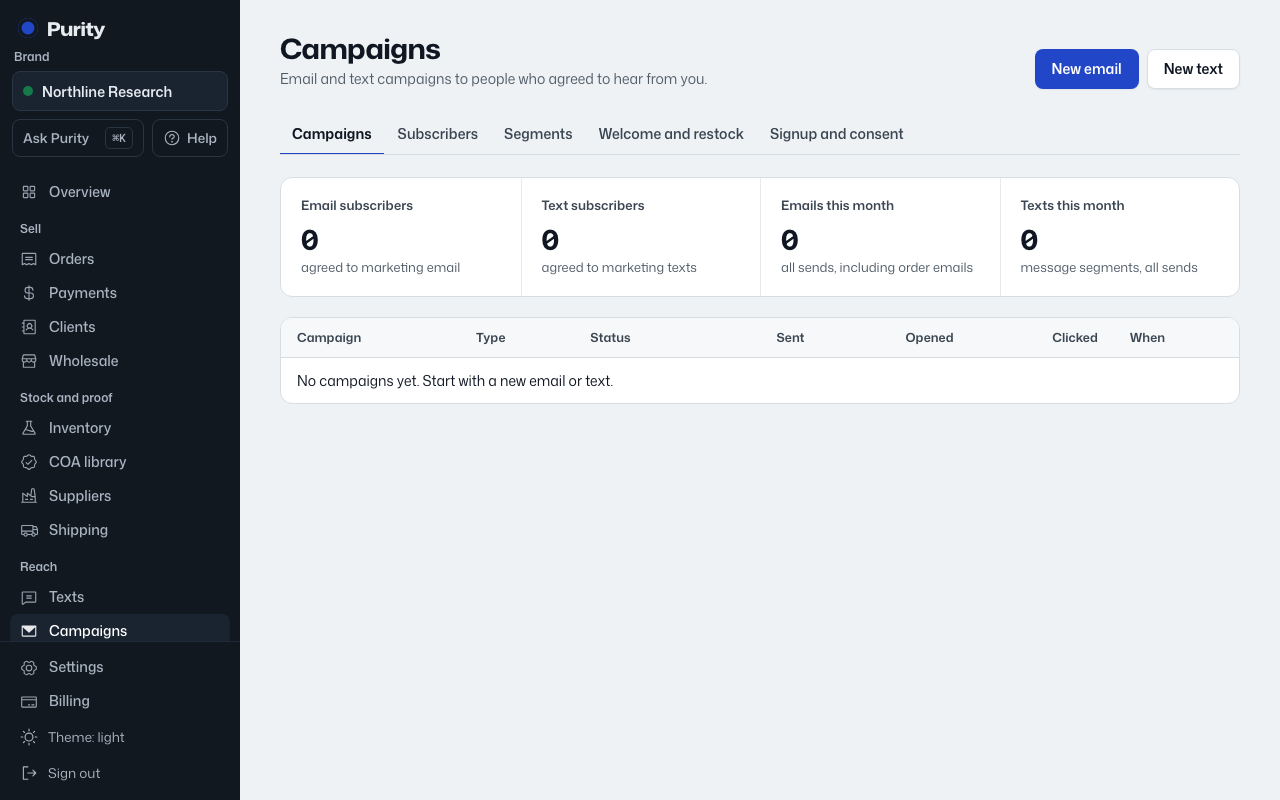
Saving a draft never sends anything. Nothing goes out until you schedule it.
- Open Campaigns and click "New email" or "New text".
- Pick "Send to": everyone subscribed on that channel, or a segment.
- For email, write a subject, preview line, and add content blocks: heading, paragraph, button, image, divider. Use {{first_name}} to greet people by name.
- For text, write the message. Your brand name and "Reply STOP to opt out." are added automatically.
- Click "Save draft".
- Click "Check wording" to catch flagged words before you send.
- Optionally enter your own email or mobile number and click "Send me a test".
- Set "Send" to a date and time, or leave it empty to send as soon as possible, then click "Schedule" or "Send now".
Scheduling is checked for wording again: blocked words stop it from scheduling entirely. Flagged words need a reason from an owner or admin in the box that appears. Only drafts can be edited; only owners and admins can schedule.
Texts wait until 8am in each recipient's own time zone. Once scheduled, a campaign shows Unschedule (if scheduled) or Stop sending (if already sending) instead of the editor.
If a campaign was drafted by the AI assistant, the editor shows a notice to read every word before scheduling it. Read it fully before sending.