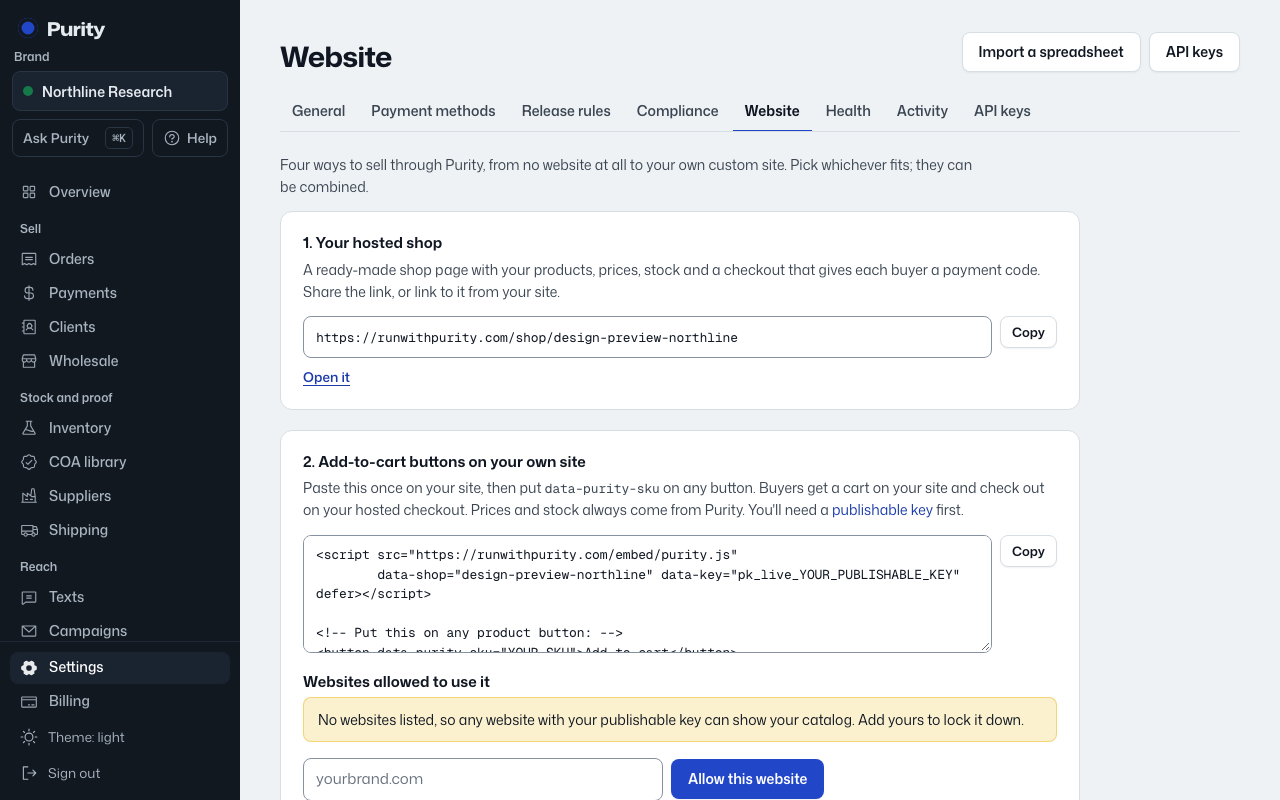
Add Purity's code in your Framer site settings once, then add buttons with Embed. Buyers pay on your Purity checkout.
Before you start: Custom code runs on published Framer sites.
Open Website, choose Framer under "Where do you sell today?", then follow these steps:
- Create a site key. It lets your site show live prices and stock. Use "Create a site key" or "Create a secret key" on the Website page.
- Copy this code. The Website page has this ready to copy.
- In Framer: Project Settings > Custom Code > Add Script. Name it Purity, paste the code, place it at the end of the body on all pages, choose "Run on every page visit", and save.
- On a page: Insert > Embed, set it to HTML, paste the button code below, and change YOUR-SKU to the product's SKU in Purity. The Website page has this ready to copy.
- Publish your site, then paste your site address below and choose "Check my site". Purity looks for the code on your page.
Connected looks like: Purity finds the code on your page and shows when your site last loaded your products.
Stock: the buttons read Purity's live stock every time a page loads, and orders are placed on your Purity checkout, so a sale takes stock off in Purity at once and sold-out products update on their own (Sold out, Pre-order or hidden, as you choose under "Stock on your website").